Take over conversations
Step into a live chat when a customer needs a person, reply from the inbox with notes and saved replies at hand, and hand the conversation back to the bot when you are done.
Use this guide when the bot has done the structured part and a customer needs a human — special requests, complaints, or anything the flow does not cover. It also covers what happens when the customer asks for a person themselves.
Open InboxWhen a human should step in
The bot is good at the predictable part of a conversation: collecting answers, offering slots, confirming bookings. Some conversations still need you — a request the flow does not cover, a price negotiation, a frustrated customer, or a booking that needs back-and-forth before you approve it.
- The customer asked something the flow has no path for and the conversation stalled.
- A pending submission needs clarification before you can approve or decline it.
- The customer asked to talk to a person. The bot pauses on its own for that (see below), but honoring it quickly is still worth more than any flow tweak.
Recurring takeovers are a flow signal
If you keep taking over for the same reason, add that path to the flow instead. Handoff is for the exceptions; the flow should own everything routine.
When the customer asks for a person
A customer does not have to wait for you to notice. When they write something like “can I talk to a human”, in the bot's language or in English, the bot pauses, tells them someone will reply, and you get a notification. The same happens after three answers in a row the flow could not accept, so a customer stuck on a question is not left arguing with a bot. Outside your business hours the message also says when you are back.
Two timers in the builder's Configure tab, under Customer messages, decide what happens while the customer waits. Still waiting after is how many minutes pass before the bot tells them you are still coming, 10 by default. Hand back after is how many minutes with nobody writing before the conversation goes back to the bot on its own, 120 by default. Set either to 0 to turn it off.
The phrases are yours to edit
The phrases that trigger a handoff, and the three messages the customer sees, live under Wording in the builder, in the Asking for a person group. They are translated into the bot's language for you, and you can add the way your customers actually put it.
Take over from the submission
Open the submission
From the inbox, open the conversation you want to join. The transcript shows everything the bot and the customer have said so far, with your side on the right and the customer on the left, so you can step in with full context.
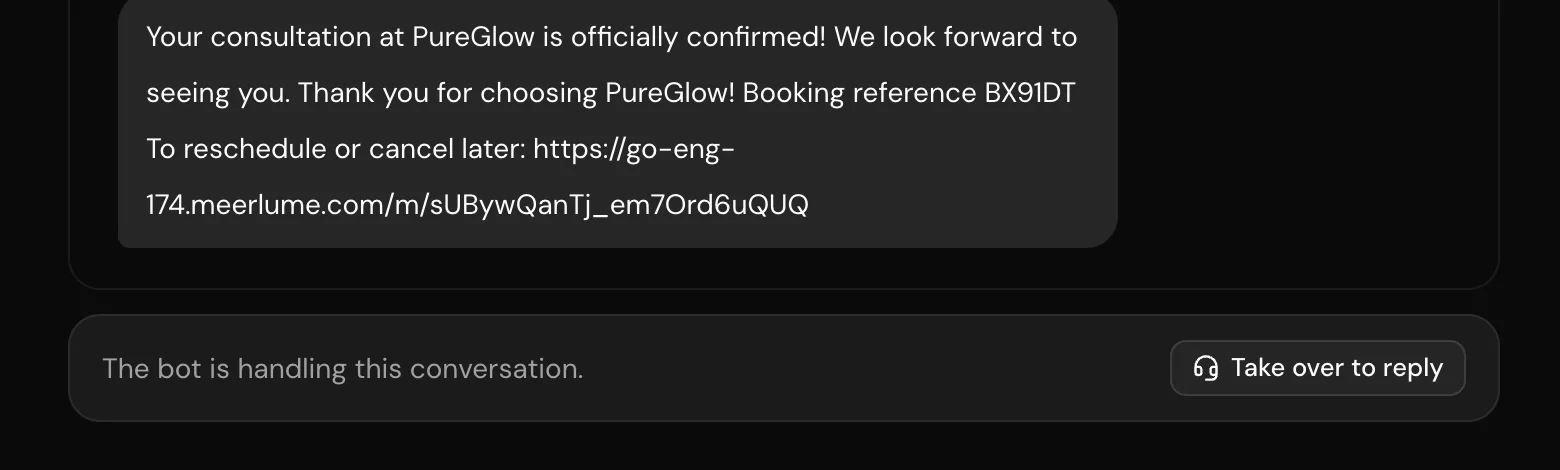
Click Take over to reply
The button sits with the reply composer at the bottom of the transcript. Clicking it pauses the bot for this conversation and sends the customer your configured handover message.
Reply directly
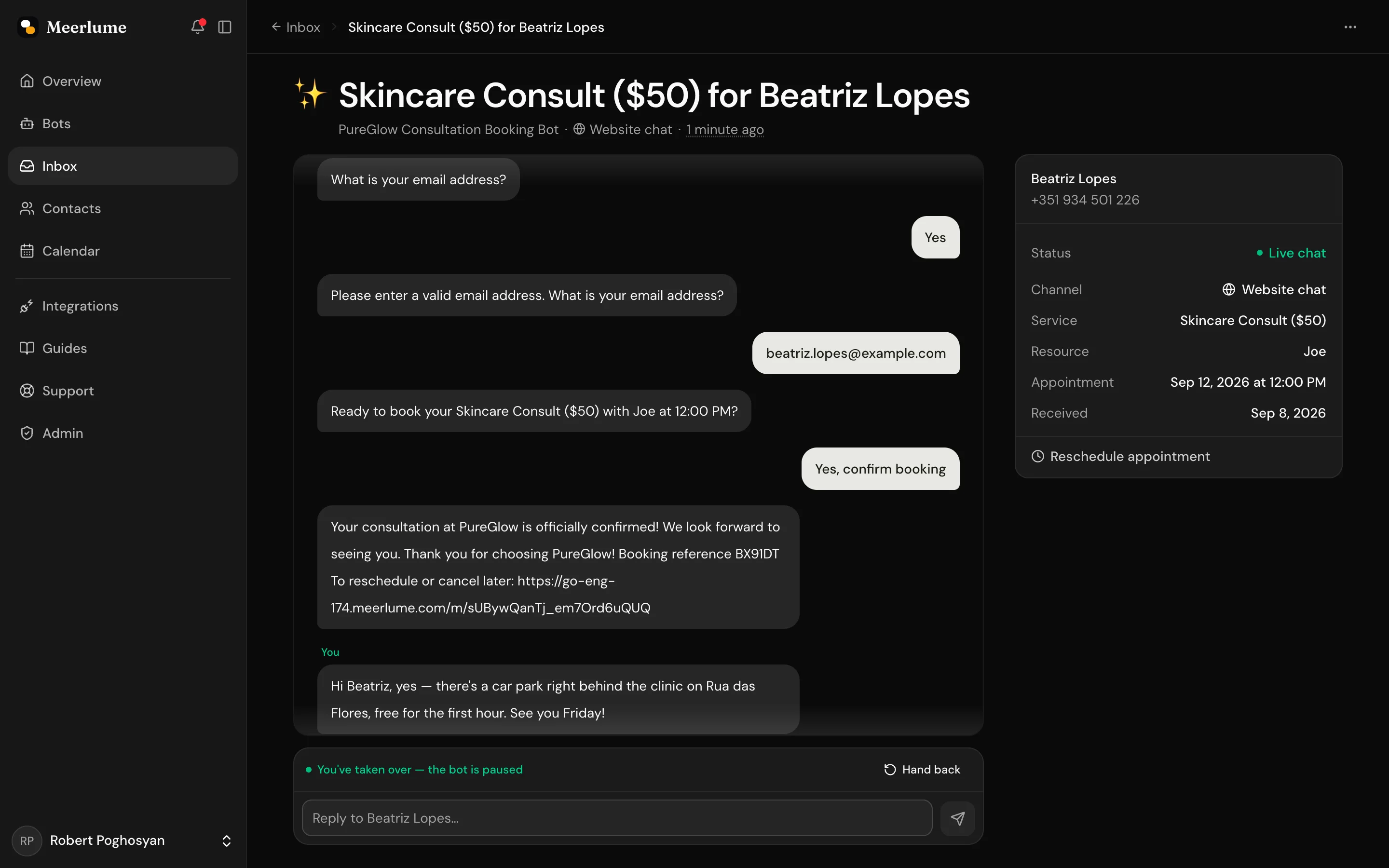
Type in the composer and send. Your messages go out on whatever channel the customer is already using, Telegram, WhatsApp, Messenger, Instagram or website chat, and appear in the transcript alongside the bot's. While you type, the customer sees a typing indicator on their side.
The bot stays out of the way
While you have the conversation, the bot does not answer the customer. Incoming messages keep appearing in the transcript so nothing gets lost while you type, and a marker in the thread records every takeover and hand back.
Notes, saved replies and a drafted reply
- Internal notes. Switch the composer from Reply to Note to write something only your team sees. Notes stay in the transcript, marked as internal, and never reach the customer. You can leave one while the bot still owns the chat.
- Saved replies. Open Saved replies under the composer to insert one, save what you have just written under a name, or delete one you no longer use. They are kept per bot.
- Draft with AI. Fills the composer with a reply drafted from the transcript and your notes. Read it and edit it before you send. Nothing goes out until you press send.
WhatsApp gives you 24 hours
On WhatsApp a business can only reply within 24 hours of the customer's last message. The composer counts down the window on WhatsApp conversations and locks when it closes; it opens again as soon as the customer writes.
Hand back to the bot
When the human part is done, click Hand back and choose what the bot should do next. The customer receives your configured bot-resumes message, and the submission returns to the status it had before you took over, so the rest of your pipeline is unaffected.
- Resume where the bot left off. The flow carries on from the step the customer was at. This is the default whenever the bot was part-way through.
- Start the flow over. The bot begins again from the first step, for a customer whose earlier answers no longer apply.
- Close this conversation. Nothing more to do: the conversation ends without the bot picking it back up.
Hand back early
Hand back as soon as the exception is resolved. The bot handles confirmations and follow-ups more consistently than a busy human, and a conversation left alone is handed back for you once the Hand back after timer runs out.
Customize the handoff messages
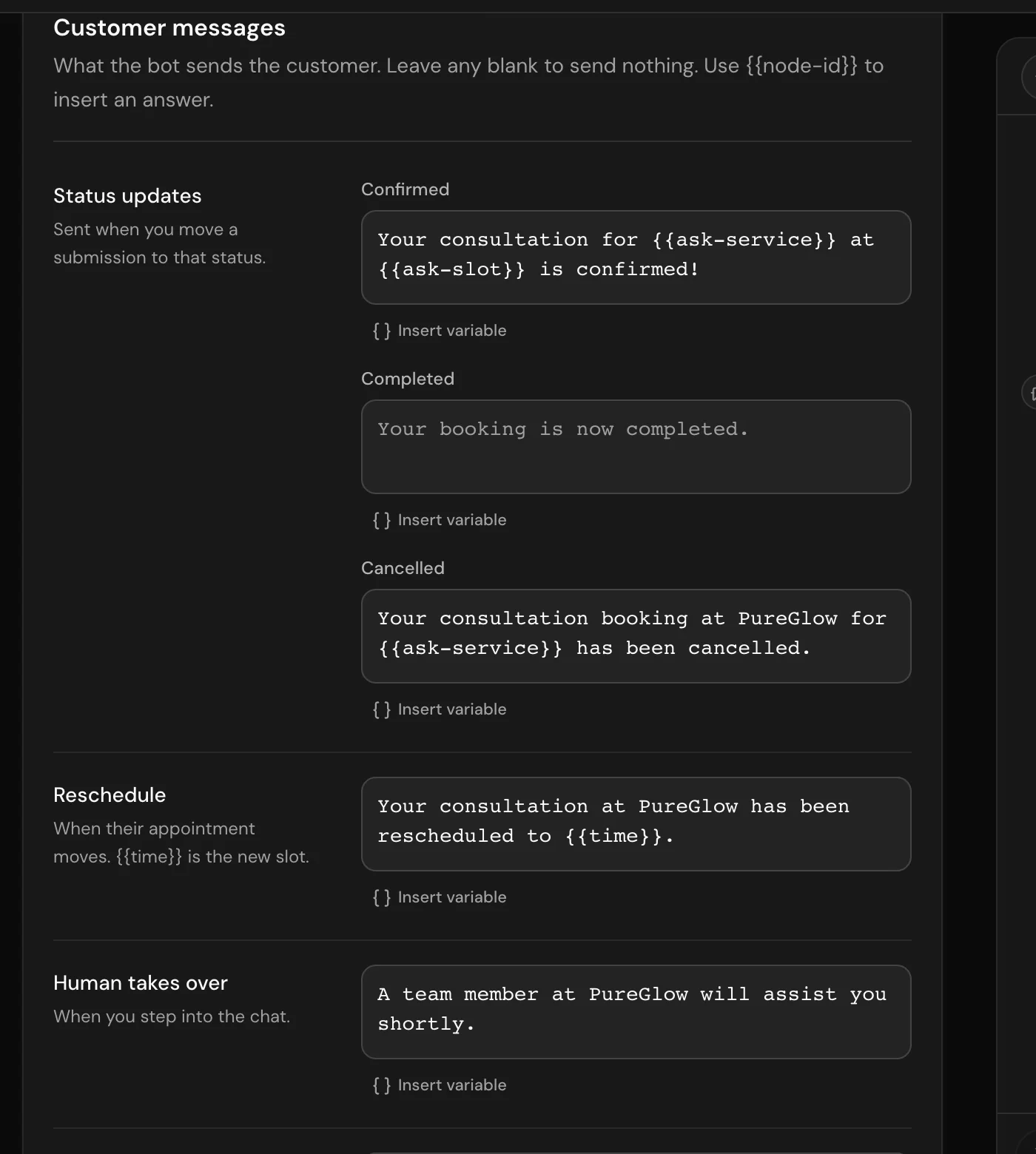
Both transition messages live in the builder's Configure tab: Human takes over is sent when you step in, and Bot resumes when you hand back. Leave either blank to send nothing, and use {{node-id}} to drop a customer's earlier answer into the text. The two waiting timers sit beside them.
Set expectations in the handover copy
A line like "A team member will reply within a few minutes" buys you time to actually get to the chat — especially if your notifications are on business-hours or digest timing.
Related guides
Continue with the next part of the setup once this step is stable.
Triage submissions in the inbox
Read what customers sent, change status, reply or take over the chat, approve or reschedule bookings, and archive — keep follow-up moving without getting buried.
Set up owner notifications
Get notified the moment a submission arrives — in the dashboard bell and on Telegram with one-tap Accept and Deny — and tune how urgently each bot pings you.
Edit and refine your flow
Use AI-assisted edits for broad changes, then switch to manual flow editing when you need precise control.